How to export your Discogs collection and check the file
Cataloguing a collection takes time. Once you have found the right editions and added your notes, it is worth keeping an extra copy of that work outside Discogs. Two habits help:
- Export a CSV regularly. This plain-text table gives you a dated copy to save on your own storage. Make a fresh export after a substantial cataloguing session and keep earlier versions too.
- Keep the collection in another service as well. Connecting Discogs to Plastic imports your collection into Plastic's own database, giving you another place to access the records already brought across.*1
Once imported, that stored collection remains available through Plastic if Discogs is temporarily unavailable. New Discogs changes will have to wait until the connection works again. Plastic's own service and account access still need to be available; this is separate from using an app offline.
Keep the CSVs even if you connect the apps. Plastic syncs changes in both directions, while an older export preserves a particular point in time. Below, we’ll request the file, save an untouched original and check what it contains.
On the Discogs website
- Open CollectionSettings options, upper right, then Export Collection
- Request the fileChoose Collection, then Request Data Export. A green banner means it is scheduled.
- Wait for the noticeDiscogs notifies you when the file is available
On your own storage
- Save the originalIn a dated folder, filename unchanged:
Discogs exports/2026-10-25/ - Make a second copyOn a device that is not the first one
- Import a working copyIdentifier columns set to Text
- Run the five checksRows, two sample records, both copies, a dated note
Request the collection export in your browser
Sign in to the Discogs website, then open Collection from your dashboard or the menu beside your profile picture. In the collection's settings options at the upper right, choose Export Collection. The help text calls the same option Export My Collection.
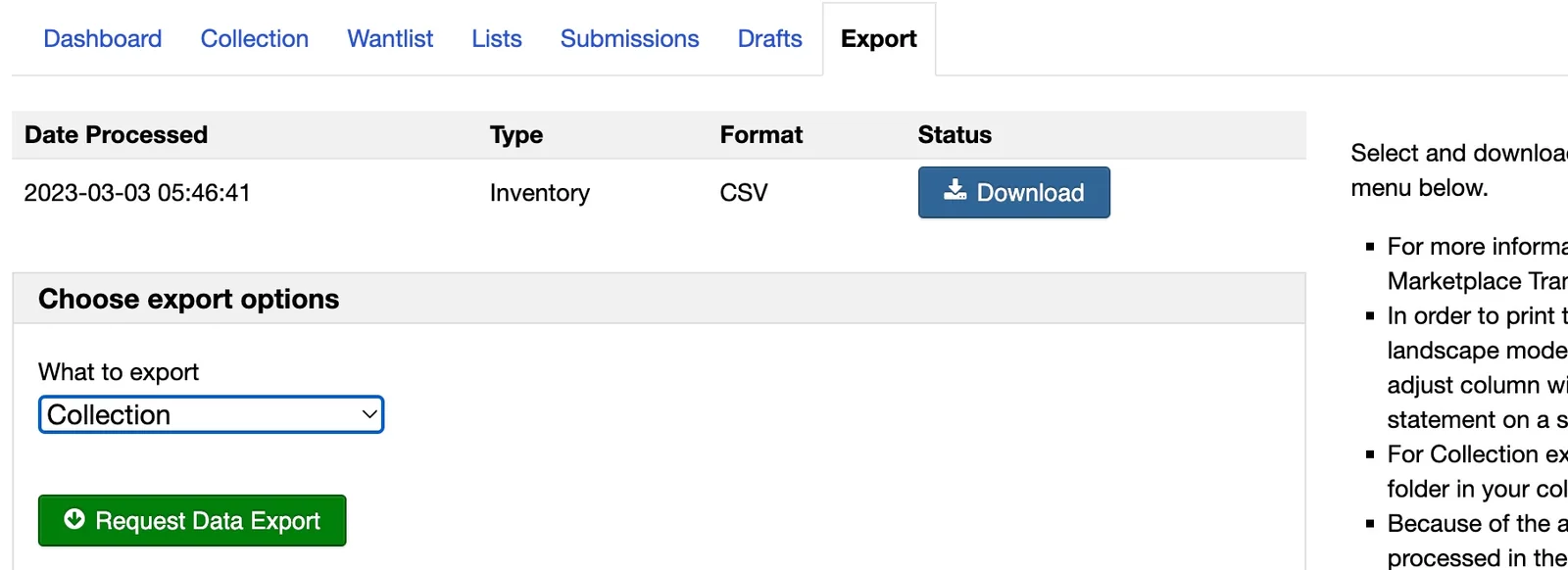
On the export page, select Collection in the dropdown and click Request Data Export. A green confirmation banner means the request has been scheduled. Discogs says it will notify you when the file is available; the request itself is not the download. Return for the completed file and save it to your own storage. *2
Use the browser route even if you normally catalogue on your phone. The Discogs app review covers the wider experience; this job ends with a file you control.
Save a dated original before opening it
Create a folder named for the export date and leave the downloaded filename intact inside it. For example, Discogs exports/2026-09-20/ makes the date clear without depending on whatever name the service supplies. Put your inspection copy in a separate working folder.
Keep the untouched download in two locations that do not depend on the same device, such as your computer and a private backup drive or cloud folder. Two folders on one laptop still leave you with one laptop. Keep an older export when making the next one, so an unnoticed mistake in the current collection does not replace your only earlier record.
Treat the file as private until you have read it. Discogs collection notes are private by default, with an option to make them public. That website setting does not control who can read a file after you share it. Inspect the export for personal notes before sending it to anyone. *3
Open the copy without changing identifiers
A CSV does not tell every spreadsheet how to interpret every column. Excel can apply its default number and date formats when you simply open the file. That can strip leading zeroes from numeric-looking text or interpret a value as a date. *4
Use your spreadsheet's text or CSV import controls and inspect the preview. Set identifier columns to Text before loading them, especially catalogue numbers or barcodes if they appear. For Excel, follow the version-specific import steps in Microsoft’s text-file guide, including its text-column settings. Check that quoted notes and commas inside titles stay in their intended cells.
Do not save a reformatted table over the original download. If something looks wrong, compare the untouched file in a plain-text viewer and import a fresh working copy with corrected settings. Adding a display format after a value has changed cannot establish what its original characters were.
Collection and marketplace inventory are different
Your collection describes the records you keep. Marketplace inventory describes seller listings. Discogs' inventory CSV tools can add, update or remove listings, which is why an inventory-import button is not a route to restoring your personal collection. *5
Check the selected export type before requesting the file. A spreadsheet full of familiar album names can still be the wrong dataset. Do not upload a collection file through seller tools to find out what happens.
Read the header, then check the records
The first row names the columns. Start there rather than assuming that everything visible on a collection screen must have travelled into the CSV.
Use this as an inspection checklist for your own file. These are things to look for, not a promised list of Discogs column names.
| Detail to check | What to compare | Why it matters |
|---|---|---|
| Release identity | A release identifier or release-page link, if present, against the saved edition | Artist and title alone cannot distinguish editions. |
| Multiple copies | A release you own twice: look for separate rows or an explicit copy count | One matching title does not account for both physical copies. |
| Folder | A record in a named folder against the corresponding exported value, if any | A recognisable album can survive while its organisation does not. |
| Rating | A record you have rated against any rating column | Blank, zero and a deliberate rating need different interpretations. |
| Condition and notes | A record with a specific condition note against its exported text | A grade without the explanation may omit the most useful detail. |
| Custom fields | Your actual field names and populated values against the header and cells | A feature on the website is not proof of export coverage. |
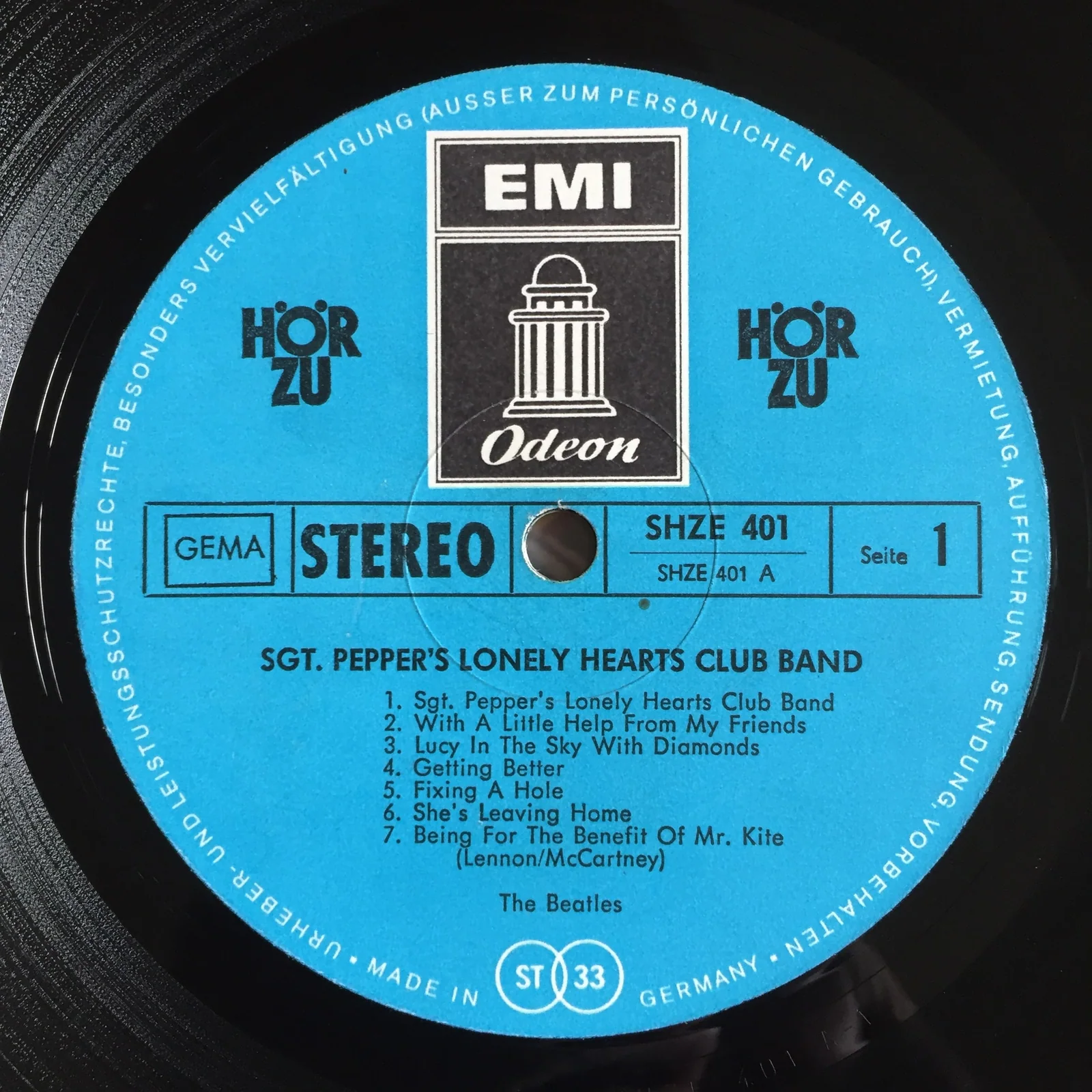
Choose one straightforward record and one complicated entry. Here is a hypothetical check: you own two copies of the same release, each with a different condition note. Find the release in the file and check whether both copies and both notes remain distinguishable. If only one entry appears, note what is missing before using the file elsewhere. Keep repeated rows until you have checked which physical copies they represent.
If a detail is missing, record it in a separate companion sheet keyed to the release and, where necessary, your own copy label. Keep that supplement separate from the untouched export. Otherwise you will eventually forget which data came from Discogs and which you added afterwards.
Finish the backup check
A readable CSV gives you a dated reference and a way to reuse the fields it contains. If your collection changes often, set a recurring reminder to download a fresh copy.
It also does not establish that a receiving app can import every field, or that Discogs can reconstruct your collection in one operation. A restore needs its own compatible route. Before relying on one, establish how it handles release identities, separate copies and personal fields.
Before filing the download away, complete five checks:
- Confirm that the file opens as a readable table with sensible columns.
- Count data rows without the header and compare them with the collection you intended to export. Investigate differences, including how copies are represented; do not force the totals to agree.
- Spot-check the simple record and the complicated entry against their current collection details.
- Confirm that the untouched original exists in both storage locations and that the second copy opens.
- Record the export date, row count and any missing information beside the file.
Keep that note with the export. Next time, compare the row count and the same two records before replacing any working files.
Sources and notes
*1. Plastic: collection storage and Discogs connection. First-party documentation describes collection import, two-way sync and use without a Discogs account. Checked 25 October 2026. Access remains subject to Plastic's account and plan limits; a synced collection is not a dated backup archive. Back to text
*2. Discogs: How Does The Collection Feature Work? Website export route, scheduled request and notification. Updated 3 June 2026; checked 25 October 2026. The help text names the control Export My Collection; the page's own collection screenshot labels it Export Collection. The illustration is Discogs' own image, including its historical Inventory row. Back to text
*3. Discogs: How Can I Add Collection & Wantlist Notes? Default note privacy and public-note setting. Updated 20 March 2024; checked 25 October 2026. Back to text
*4. Microsoft: Import or export text files and Text Import Wizard. Import formatting, delimiters and text-column controls; available menus depend on the Excel version, and newer versions treat the wizard as a legacy option that may need enabling. Checked 25 October 2026. Back to text
*5. Discogs: Import and Export Your Inventory (CSV). Seller-listing import and export, updated 21 September 2026; checked 25 October 2026. Back to text